
Free extension Built for Chrome
Find accessibility issues.
Before you ship.
A free Chrome accessibility checker for website owners and developers. Find WCAG issues on the page you open, highlight the elements, and share clear next steps.
Local scanning. Powered by axe-core. Run your first check →
Runs locally in your browser
Export reports & fix prompts
Free to install and use
A practical first check
From a page
to a plan.
Make accessibility checks part of the work you already do.
Start with your page
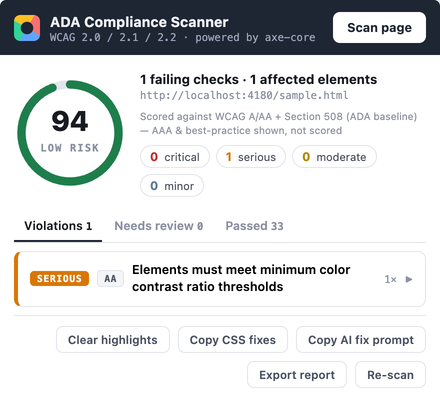
Open the extension on the webpage you want to check and start a scan. It runs only when you ask.
Find the right element
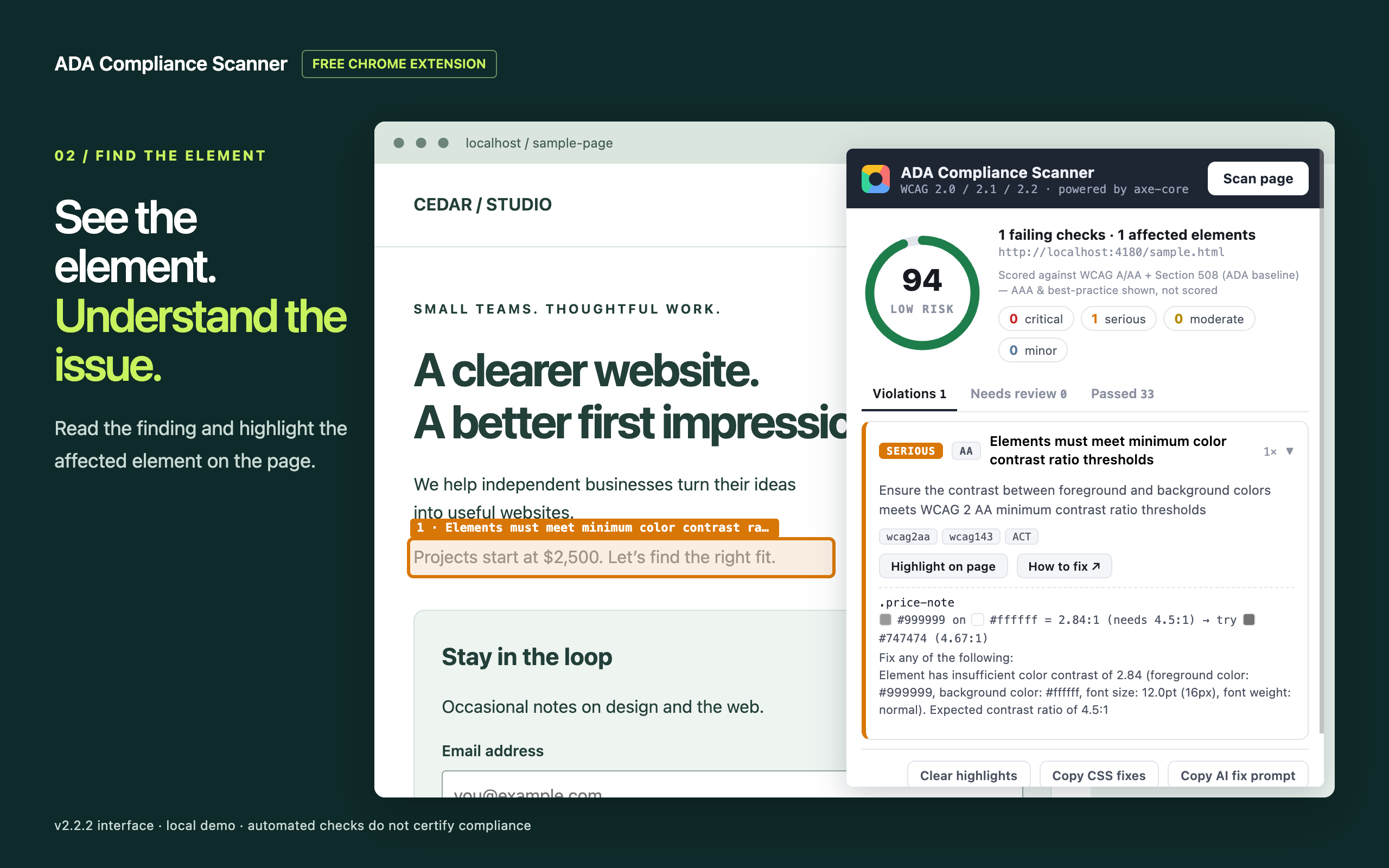
Review issues by impact, inspect the affected HTML, and highlight elements on the page.
Take it back to your code
Export a JSON report or a fix prompt for your coding assistant. Review your changes, then scan again.
Open the demo and full transcript →
Read the walkthrough transcript
- Scan a sample page. The scanner finds one serious AA color-contrast issue.
- Expand the finding and highlight the affected pricing text. Its contrast is 2.84:1 against white.
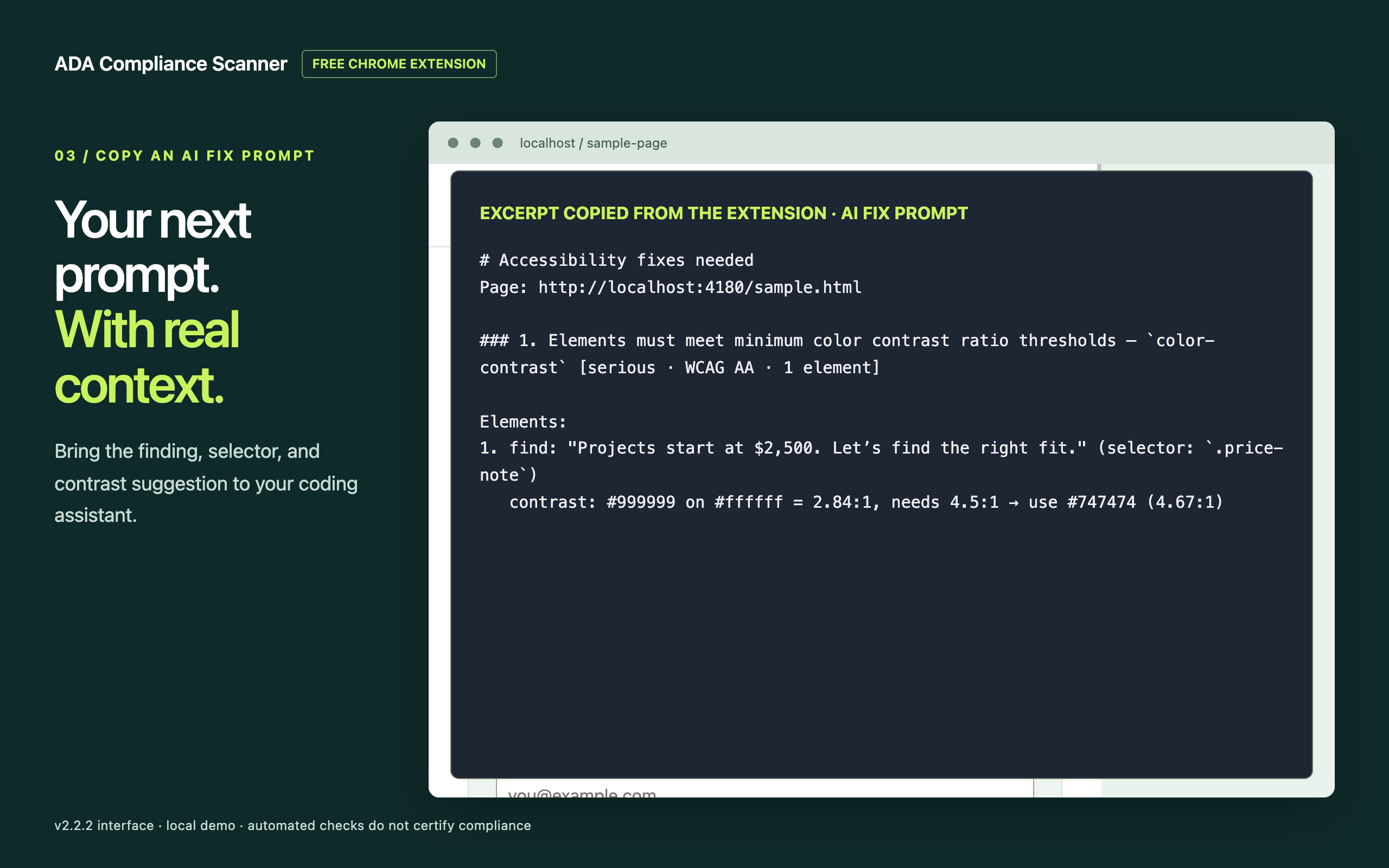
- Copy an AI fix prompt with the finding, text to find, selector, and suggested color.
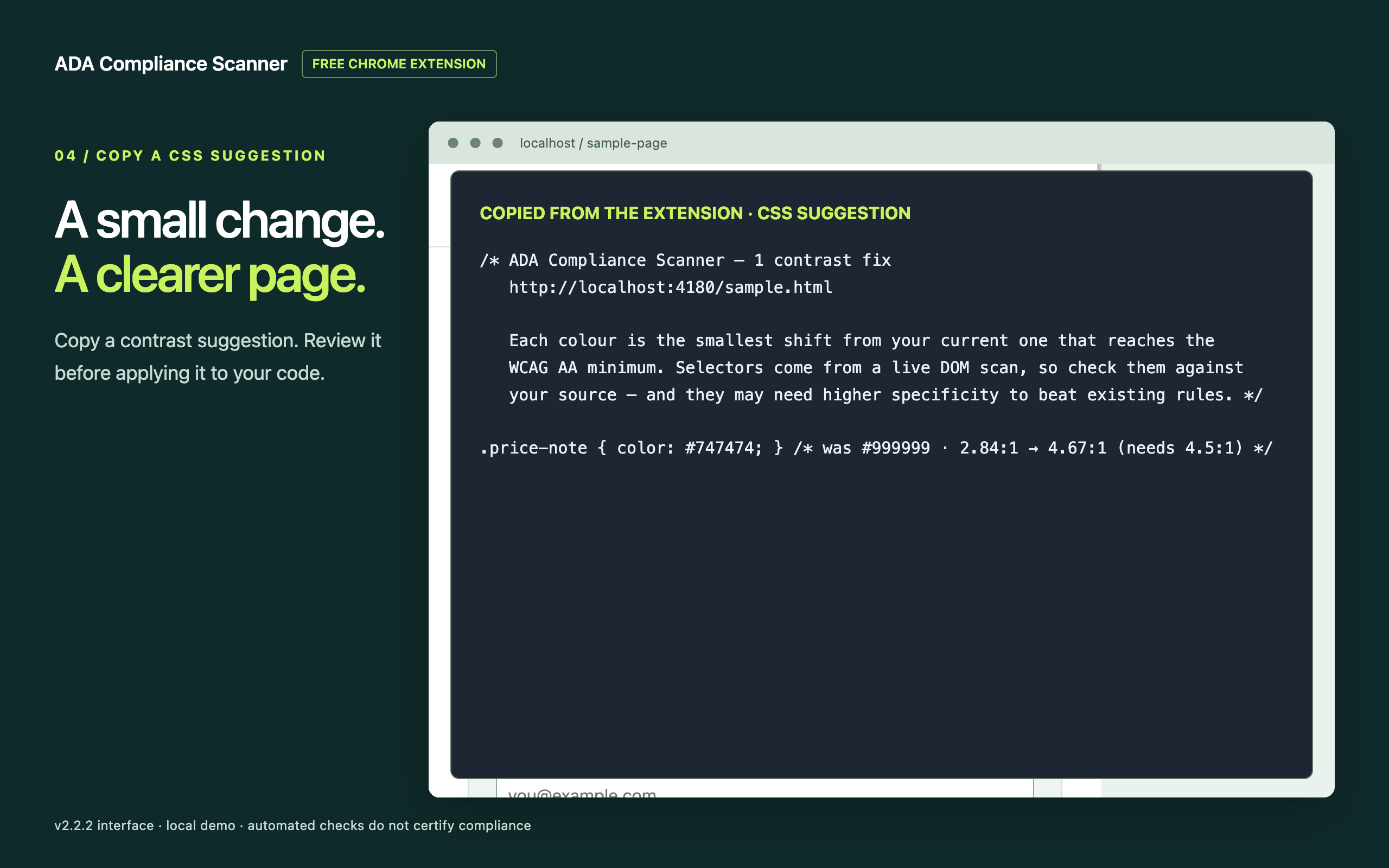
- Review the suggested CSS: change the pricing text from #999999 to #747474.
- Re-scan. The AA issue clears at 4.67:1. An enhanced AAA contrast finding remains; continue reviewing and testing manually.
Bring the findings to your code
Your next prompt.
With real context.
Copy the scan’s findings into ChatGPT, Claude, or your coding assistant. Add your project context, review the proposed changes, and check the result.
Follow the complete workflow →What is ADA Compliance Scanner?
A browser check.
A useful next step.
ADA Compliance Scanner is a free Chrome extension by Alex Kim. It uses axe-core to check the current webpage, highlights affected elements, and exports reports and fix prompts. Use it on WordPress, a local development site, or a page you maintain.
It checks the page state you open. It does not crawl your entire site, fix code automatically, or certify ADA compliance. See the product facts.
Learn by doing
A small check.
A better experience.
Practical guides for the pages and projects you work on.
Turn accessibility findings into a useful AI prompt
A practical workflow for scanning a webpage, copying an accessibility fix prompt, reviewing AI-generated changes, and checking the result.
Read the guide WordPress workflowCheck your WordPress pages from Chrome
Check rendered WordPress pages with a free Chrome extension. Find accessibility issues, identify the responsible theme or block, and verify your fixes.
Read the guide Local developmentCatch issues while your site is still local
Use ADA Compliance Scanner during local development. Learn what to scan, how to rescan changes, and where browser permissions limit coverage.
Read the guide Practical WCAG checksMake contrast findings easier to act on
Find text contrast issues, understand WCAG AA thresholds, update the relevant styles, and recheck real page states with a Chrome accessibility scanner.
Read the guideGood to know
A few common questions.
Is the extension free?
Yes. ADA Compliance Scanner is free to install and use. Scanning, on-page highlighting, JSON report exports, CSS suggestions, and AI fix prompts are included.
Does my page content leave the browser?
Scanning and report generation happen locally. The extension does not send your page to an AI service. If you paste an exported prompt into a coding assistant, you choose what to share with that service. Read the extension’s privacy policy.
Does a clean report mean my site is ADA compliant?
No. Automated checks cover only part of accessibility. A score or clean scan does not certify compliance or establish legal risk. Keyboard testing, screen-reader testing, content review, and other manual checks are still needed.
Can I check WordPress or locally developed pages?
You can check rendered webpages in Chrome, including ordinary localhost pages. The extension scans the page you open; it does not crawl an entire site or edit WordPress. Browser-internal pages are restricted, and some embedded frames may need additional access.
Does it fix my website automatically?
No. It identifies issues, offers guidance, and lets you copy CSS suggestions or AI fix prompts. You review and apply changes in your project, then run a fresh scan.
Make the next page a little better.
Start with the page you are working on today.