
AI-assisted development
Fix accessibility issues with ChatGPT or Claude
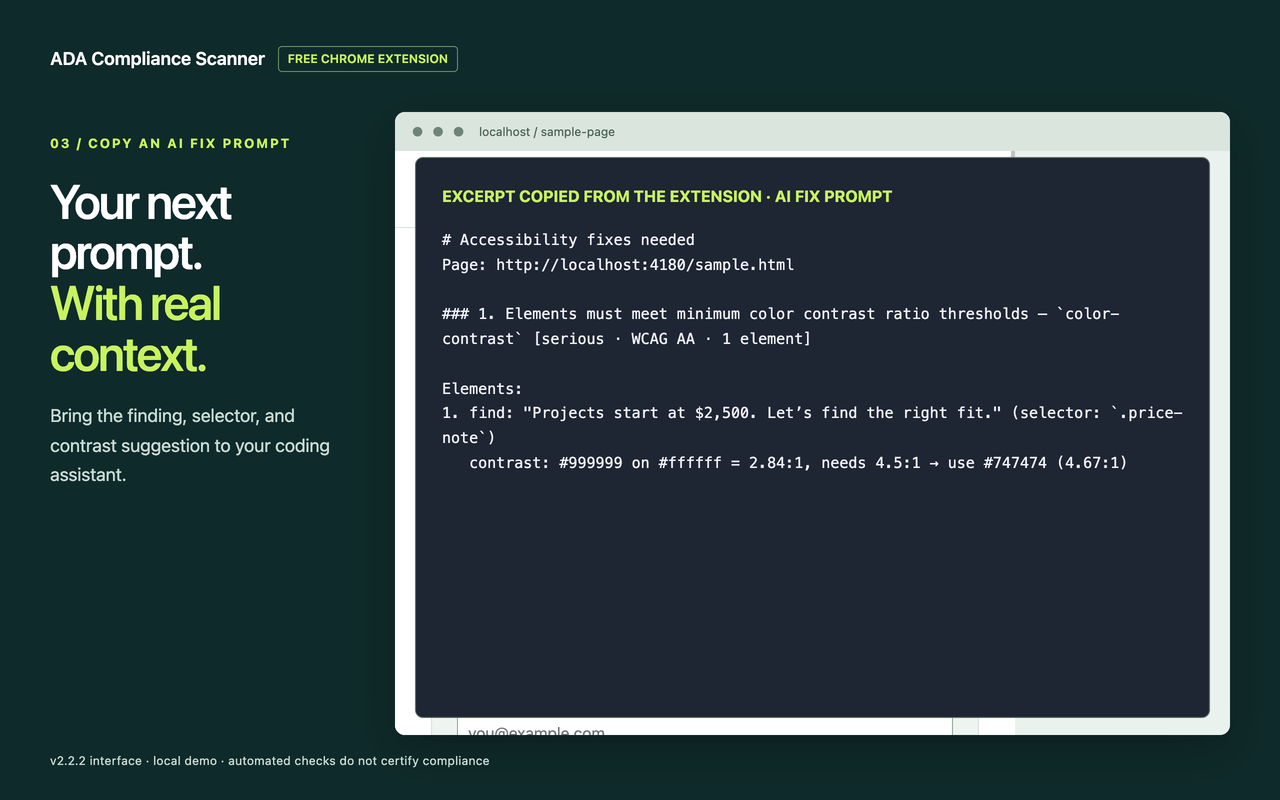
Scan a page with ADA Compliance Scanner, choose Copy AI fix prompt, and paste the findings into ChatGPT, Claude, or your coding assistant. Add the relevant code, review the proposed fix, and re-scan the page. The extension does not connect to those services directly.
1. Scan the page you are working on
Open your page in Chrome, open ADA Compliance Scanner, and choose Scan page. Start with one page and a state you can reproduce: a form before submission, an expanded navigation menu, or an open dialog.
Look through Violations and Needs review. A finding that needs review is an unresolved question, not an automatic failure or a pass. Note any frame-coverage message too: content the scanner could not reach still needs attention.
2. Give the assistant evidence
Use Copy AI fix prompt to copy the extension’s generated prompt. Paste it into your coding assistant alongside the relevant project. The extension copies text; it does not connect to an AI service or change your source files.
Before sharing the prompt, review it for page URLs, text, and selectors from the scan. JSON exports can also contain HTML snippets. Remove anything you do not want to send to that service. Then add project context the browser cannot know, such as the component file or the design-system rule you want preserved.
Working in ChatGPT or Claude
In a chat, paste the exported prompt and only the relevant component or stylesheet. If the assistant has no access to your project, ask it to explain the change and show a patch you can review. In a coding workspace, identify the component and ask the assistant to check the surrounding behavior before editing.
If you do not edit code, ask for a plain-language explanation and a developer handoff note. Review any proposed fix with the person maintaining your site. Pasting a URL alone does not give an assistant your local scan results or private source code.
3. Review the proposed change
For an unlabeled email input, a small semantic change may be all that is needed. The example below is illustrative, not output from a particular scan.
<!-- Before: placeholder text is not a visible label -->
<input type="email" placeholder="Email address">

<!-- After: a visible, explicitly associated label -->
<label for="newsletter-email">Email address</label>
<input id="newsletter-email" name="email" type="email"
       autocomplete="email">
W3C recommends associating labels with their controls. Check that the identifier is unique and the visible label describes what the person should enter. Read W3C’s form-label guidance.
4. Rescan and test the interaction
Apply the reviewed change to your project, reload the page, and choose Re-scan. Confirm that the original issue is gone. Check related components and other states that share the changed styles or markup.
Then use the form yourself: navigate with a keyboard, check the focus indicator, and verify its label and feedback with a screen reader. A cleaner automated report is useful evidence about the checks that ran, not proof that every interaction is accessible.
Keep the scope small
Fix one component or one repeatable issue at a time. Keep a copy of the original finding and the reviewed change so you can compare them. If the assistant proposes a broad rewrite for a small finding, ask it to explain why that larger change is necessary.